
Settings
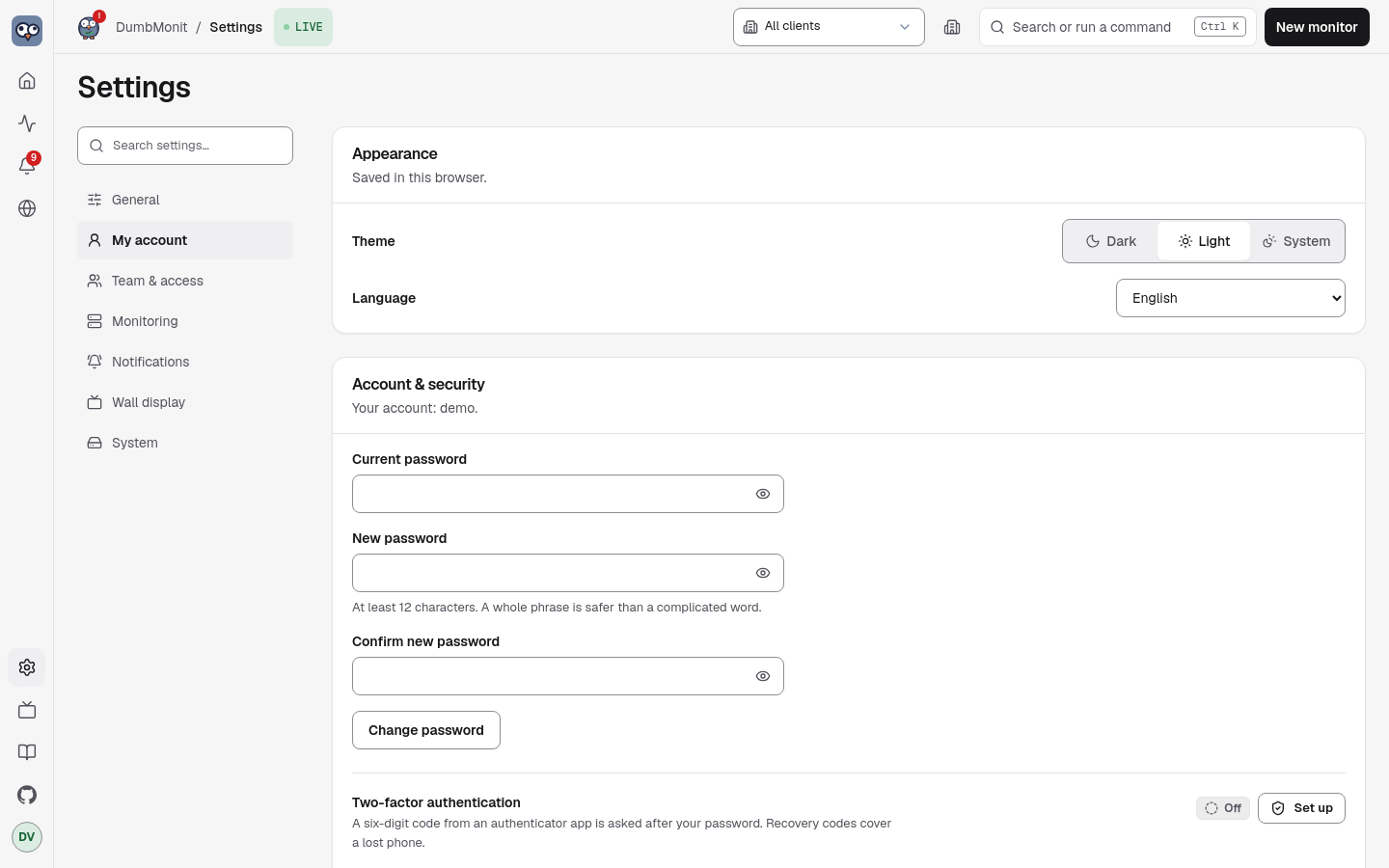
Settings holds what is administrative: the instance itself, your account, who can sign in and how, the agents, the notification channels, backing the instance up, and the server’s health. It is split into six tabs, each with its own address. A rail on a wide screen, a strip of chips on a phone and a search box over the section names help you find a section.
| Tab | Address | What it holds |
|---|---|---|
| My account | /settings/account | Appearance (theme and language), Account & security (password, two-factor, security log), Push notifications, On-call contacts and quiet hours (On-call) |
| Team & access | /settings/team | Users, Teams, Clients, Single sign-on, SAML, SCIM, LDAP |
| Monitoring | /settings/monitoring | Agents, Integration packs, Security score, Locations |
| Notifications | /settings/notifications | Channels, Notification policy (Notification channels) |
| Wall display | /settings/wall | Wall mode: what it shows, and the way in (Wall mode) |
| System | /settings/system | Instance name and time zone, the setup wizard (Interface and setup wizard), Backup, Configuration files, DumbMonit itself, HTTPS and encryption, Network ports, Data & retention, Logs, API & assistants, About |
Each section keeps its own anchor: /settings#agents forwards to /settings/monitoring#agents. The old links (/alerts#notifications) forward to the new place too. /settings/general forwards to the System tab. Status pages and reports are not in Settings any more: they have their own pages, Status pages (/status) and Reports (/reports); /settings/status and /settings/reports forward there. The wall’s news and widgets are gone: their old links (#news, #widgets) open the Wall display tab, where Wall music (#music) is.
Appearance
Section titled “Appearance”The language of the interface, saved in this browser. The console has a single dark look, so there is no theme to pick; public status pages keep their own light and dark themes.
Wall display
Section titled “Wall display”Open wall mode: the console’s board, full screen, for a monitor in the room. ++esc++ leaves it, and the command palette opens it from anywhere. The wall has no news or widgets any more; an optional night city can sit behind its verdict. See Wall mode.
Wall music: connect a Spotify account (the wall becomes a Spotify Connect speaker and shows what plays, with play / pause), or send a Spotify, Deezer or YouTube link to every wall. See Music on the wall.
Account & security
Section titled “Account & security”This is your own account. The first one is created on first start, and more can be added below. Here you change your password: current password, new password (at least 12 characters; a whole phrase is safer than a complicated word), confirmation. Changing it signs out every other session. Accounts that sign in through the identity provider have no password here. Sign out ends this session.
Login is rate-limited per client address and per account: after five failed
attempts, each further attempt waits longer (30 s, doubling, up to 5 minutes).
Behind a reverse proxy, set DUMBMONIT_TRUSTED_PROXIES so the limiter sees
the real client address rather than the proxy’s (see
Configuration). Sessions last 30 days. A
forgotten password is reset with DUMBMONIT_RESET_PASSWORD=1: see the
FAQ.
Two-factor authentication
Section titled “Two-factor authentication”Accounts that sign in with a password can add a second factor: a six-digit time-based code (TOTP) from an authenticator app — Aegis, FreeOTP, Google Authenticator, 1Password, Bitwarden… Set up asks for your password, shows a QR code to scan (or the key to type), and enables the second factor once you enter a first code from the app. Eight recovery codes are then shown once: save them, each one signs you in a single time if the phone is lost. The sign-in screen asks for the code (or a recovery code) after the password; five wrong codes cancel the attempt and you start over from the password, and the usual sign-in rate limit keeps counting across attempts. A code is accepted once: the one you just used (including the one that enabled the second factor) does not sign you in again — wait for the next one.
Disable asks for the password again. Recovery codes cannot be regenerated on their own: disable and set up again to get a fresh set. An admin can reset another user’s second factor from Users (Reset 2FA) when both the phone and the codes are gone — that signs the user out everywhere and leaves the password alone. The secret is stored encrypted with the instance secret; codes are hashed. Single sign-on accounts get their second factor from the identity provider, not here.
Admins also find the security log in this section: sign-ins and failures, password and two-factor changes, token and account changes, with the client address. It keeps the last 5 000 entries.
Push notifications
Section titled “Push notifications”Native notifications on this phone or computer, even with DumbMonit closed: Enable on this device, then Send a test. Every account manages its own devices here (viewers too); which alerts reach them is set by a Web Push channel in Settings → Notifications. The i button sums up the requirements: HTTPS (or localhost), Home Screen installation on iPhone and iPad, and the push service domains the server must reach. Full guide: Push notifications (PWA).
Admins only. The accounts that can sign in, and their role:
| Role | Reads everything | Handles alerts (ack, snooze, ignore, maintenance windows, clear history) | Changes configuration (monitors, rules, channels, status pages, settings, backups, tokens, accounts) |
|---|---|---|---|
| Viewer | yes | no | no |
| Operator | yes | yes | no |
| Admin | yes | yes | yes |
A viewer sees every page with every control that would change something
hidden. A few things stay admin only even to read: API and agent tokens,
status page subscriber emails, and monitor options that look like secrets
(an option whose name contains key, token, password…, the extra headers
of an HTTP check, the password of a https://user:pass@host address), which
non-admins read as ***. An operator is the on-call role: the alert controls are there, the
configuration screens read Operator — config is admin only. Only an admin
creates accounts or changes a role — an operator cannot promote anyone,
themselves included. The Users, Single sign-on and security log sections
stay admin only. Add user asks for a username, an
optional display name, a role and a password; the button beside the password
field makes up a random one. The password is shown once, to hand over.
Each row carries the role, whether the account signs in with a password or through the identity provider, whether two-factor is on, and the last sign-in. Edit changes the display name, the role and the password (a reset signs that user out everywhere and shows the new password once). The Enabled switch suspends an account without deleting it; Reset 2FA appears when the account has a second factor; Delete removes it for good. The server keeps at least one active admin, and the controls reflect that rule rather than reporting it as an error: the last admin cannot be demoted, disabled or deleted, and you cannot disable or delete your own account.
Single sign-on
Section titled “Single sign-on”Admins only. Sign-in through an OpenID Connect provider (Authelia, Authentik,
Keycloak, Pocket ID, Google Workspace…). Fill in the provider name (it
labels the “Continue with …” button on the sign-in screen), the issuer URL
— discovery is read from {issuer}/.well-known/openid-configuration — the
client id, the client secret (stored encrypted, never shown again) and the
public URL browsers reach DumbMonit at. The form builds the redirect URI
from that public URL: copy it and register it with your provider.
Test discovery reads the provider’s configuration without signing anyone
in, lists the endpoints it found, and warns when the provider signs with
neither RS256 nor ES256 — the only two signatures DumbMonit accepts. Settings
saved here take precedence over the DUMBMONIT_OIDC_* environment variables,
which only apply while nothing is saved; Forget saved settings clears them
and falls back to the variables when they exist.
Advanced. The rest of the form sits under Advanced: Scopes names what to ask the provider for, Groups claim the token claim that lists the user’s groups, and Create accounts on first sign-in decides whether an unknown person gets an account. It is off by default: only accounts that already exist can sign in until you turn it on.
Roles. Admin groups lists the groups whose members become admins;
Operator groups the groups whose other members become operators; everyone
else is a viewer. Leave both empty to keep managing roles under Users.
With only Operator groups filled in, the groups never touch the admin role:
admins stay admins, the others become operators or viewers. Roles are
re-evaluated at each sign-in, except that the last active admin is never
demoted. The matching environment variables are DUMBMONIT_OIDC_ADMIN_GROUPS
and DUMBMONIT_OIDC_OPERATOR_GROUPS.
Which account a sign-in lands on. The identity is remembered by its provider subject after the first sign-in. On a first sign-in:
- An existing account is linked only when the provider asserts
email_verified: trueand that email is the account’s username. Apreferred_usernameor an unverified email never links: on most providers the user chooses those, soadminfrom the provider must not become youradmin. - A local admin that has a password is never linked automatically, even on a verified email: the sign-in creates a distinct account instead. Keep managing that admin with its password, or create a separate SSO admin through the admin groups.
- Otherwise, with Create accounts on first sign-in on, a new account is
created (username from the provider, suffixed
-1,-2… when taken). With it off, only the verified-email link above can sign in.
Account creation is off unless you choose it. New installs start with
Create accounts on first sign-in off, and so does any configuration where
it was never set — settings saved before the option existed, or
environment-only setups without DUMBMONIT_OIDC_AUTO_CREATE. Earlier releases
treated “never set” as on; the Single sign-on panel now says when this
default applies. A value you saved explicitly is kept as it is.
LDAP / Active Directory
Section titled “LDAP / Active Directory”Admins only. Sign-in with directory usernames and passwords on the usual sign-in screen, roles from the directory groups, accounts created at the first sign-in. See LDAP / Active Directory.
SAML, SCIM and teams
Section titled “SAML, SCIM and teams”Admins only. SAML 2.0 single sign-on, SCIM provisioning, and teams that limit each account to some folders of monitors. See SAML 2.0, SCIM provisioning and Teams and permissions.
Agents
Section titled “Agents”Only what is shared by every agent, for admins: the encrypted agent channel (certificates and their authority, see Agent security), automatic agent updates, and the enrolment tokens already issued. Each token shows its scope, creation date and last use; Revoke stops every agent using it at its next push, without deleting the monitors.
Adding a machine (token, install command, first connection, a route through a
relay, the Active Directory kit) happens in the add flow, New monitor →
Agent (/targets/new?kind=agent), not here. The agents themselves are on
their own pages.
Under Enrolment approval, choose what happens to a machine that enrols with a token (accept it, ask an administrator, or accept it when it belongs to the token’s Active Directory domain), and the hourly limit per token. Waiting machines are listed there. A fleet token that enrolled nothing for 30 days goes to sleep and shows Asleep with a Reactivate button. Details: Protecting enrolment.
HTTPS and encryption
Section titled “HTTPS and encryption”Admin-only, in Settings → System. Shows the certificate the web port serves (self-signed or yours), its fingerprint and expiry, and a download of the certificate (PEM). It also lists every connection that still travels in clear or without certificate checks, with a link to where to change it. See HTTPS and encryption.
Network ports
Section titled “Network ports”Admin-only, in Settings → System. The ports DumbMonit listens on, computed from the running configuration: the web interface (HTTPS), the agent channel, syslog, SNMP traps, the bundled storage, and the gateway of each relay agent. For each one: who must reach it, whether it may face the Internet, and whether it is on, off or loopback only. Below the list, a ready-to-paste ports: block for Docker Compose and ufw rules. See Network ports.
Security score
Section titled “Security score”In Settings → Monitoring, below the agents: a score for how well the instance and its monitored hosts are hardened. See Security score.
Reports
Section titled “Reports”On its own Reports page (/reports; it used to sit in Settings → Notifications): the availability (SLA) export of a period, the periodic availability emails for the team and the history of their sends. Admin-only. See Email reports.
Data & retention
Section titled “Data & retention”Admin-only. Shows how much disk the metrics (vm), the 5-minute aggregates
(vm-long), the log store (vlogs), the database and the backups take, the
free space, and the growth per day with the number of days left before the
volume is full.
- Raw metrics retention (7 to 3650 days). Read-only when an external VictoriaMetrics is used: set it there. Lowering it deletes the older raw data at the next VictoriaMetrics retention cycle.
- Long-term history: on or off, its retention (730 days by default) and its state (last window written, history copy progress). Graphs, status pages and reports reaching past the raw retention are answered from it.
- Log store: off by default. Turning it on starts the embedded VictoriaLogs and opens the admin-only Logs page, a LogsQL search over the server’s own logs.
Saving a retention restarts the embedded process concerned for a few seconds; samples are buffered meanwhile. See Sizing and External VictoriaMetrics.
Backup
Section titled “Backup”Three things, in the order you meet them.
A warning you cannot miss: /data/secret.key is what decrypts monitor
credentials, and a copy of the database without it restores an instance that
cannot talk to anything. The wording changes when the secret comes from
DUMBMONIT_SECRET instead — there is then no file to copy, and it is your
password manager that has to hold it.
Export the configuration lists what the bundle would contain, with a count per section, then asks for a passphrase twice. The file that comes down holds every credential of this instance, encrypted with that passphrase alone: keep it where you keep passwords. Account passwords and 2FA secrets are left out unless you turn the switch on.
Restore a bundle takes the file and its passphrase and shows a dry run first: a table of what would be created, updated and left alone, section by section, with a note for anything it cannot place. Nothing is written until you press Restore for real.
Scheduled local backups shows whether they are on, where they go, the last run and whether it succeeded, and the files kept with their size. Back up now writes one immediately — the thing to do before an upgrade.
Everything here is admin-only. See Backup and restore.
DumbMonit itself
Section titled “DumbMonit itself”The state of the engine right now — scheduler, SQLite database, metrics database — with the free space on the data volume, the database size and, for the embedded VictoriaMetrics, how many times it was restarted. Built-in rules already warn you when any of these goes wrong.
Below, the outgoing heartbeat: a URL of yours (Healthchecks.io, an Uptime Kuma push monitor, Better Stack…) that DumbMonit calls at a regular interval, only while it is healthy, so that someone outside notices when this host goes quiet. Test sends one call right away; Signal failures calls the failure URL instead of staying silent. The URL is stored encrypted and never shown again, only its host. Changing it is admin-only. See Watching DumbMonit itself.
API & assistants
Section titled “API & assistants”One kind of token for both: MCP clients and the REST API. Name a token, pick its scope and create it — it is shown once. A read token can only look; a read and write token can also change things — silence a monitor, run a probe, add or edit monitors, rules and channels — but never accounts, sign-in settings or other tokens.
Under Connect, three tabs hold the snippets, filled with the token while
it is still on screen: Claude (the claude mcp add command and the
claude_desktop_config.json block), ChatGPT (the MCP server URL and the
authorization header, with a warning when this page is not served over HTTPS —
ChatGPT connects from OpenAI’s servers, so the address must be reachable from
the internet) and Cursor / other, the same shape for any client that speaks
Streamable HTTP with a bearer header. API access shows the same token on
the REST API as a curl example, and points at the routes a Prometheus or a
Grafana scrapes with it. See Connect an assistant and
Scraping DumbMonit.
Version of the server and the health of its two stores, the database (monitor
setup and alert history) and VictoriaMetrics (every measurement in the
charts), as reported by GET /api/health and refreshed every 15 seconds. A
store that stops answering shows a warning with the error and what to check.
The section also links to this documentation and names the licence, Apache
2.0.